
Tag: Workflow Automation

  • How to Create Automation Workflows with Zapier and Make You Didn’t Know About

    How to Create Automation Workflows with Zapier and Make You Didn’t Know About

    Ever feel like you’re drowning in repetitive digital tasks? You’re not alone. In today’s fast-paced world, the real competitive edge isn’t just working hard—it’s working smart by letting technology handle the routine. This is where the magic of automation workflows comes in. They are the digital blueprints that connect your apps and services, making them work together seamlessly without your constant input.

    While many are familiar with basic “if this, then that” automations, the true power lies in the advanced, nuanced automation workflows that can transform entire business processes. In this guide, we’ll move beyond the basics and dive into the lesser-known, highly effective methods for building sophisticated automations using two giants: Zapier and Make (formerly Integromat). Whether you’re looking to save hours each week or build a complex operational backbone, you’ll discover strategies you likely haven’t tried yet.

    Beyond the Basics: Understanding the Advanced Mindset

    Before we jump into the platforms, let’s shift our perspective. A basic automation sends a Slack message when you receive an email. An advanced automation workflow analyzes that email’s content, extracts key data, updates a CRM, creates a tailored task in a project management tool, and sends a personalized follow-up if certain conditions are met—all in a single, fault-tolerant chain.

    The goal is to think in terms of processes, not just tasks. This mindset is key to unlocking the potential we’ll explore.

    Crafting Sophisticated Automation Workflows in Zapier

    automation workflows

    Zapier is renowned for its user-friendly interface. But beneath its simplicity lies a powerhouse of advanced features most users overlook.

    Leveraging Conditional Logic and Filters Like a Pro

    Most users add a basic filter. The pro move? Layering multiple filters with custom logic paths.

    • The Secret: Don’t just stop at one filter. Use “Filter by Zapier” as an active step to create separate branches in your Zap. For example, an incoming form submission can be routed down one path if it’s a “Sales Query” (going to Salesforce and the sales team Slack channel) and down another if it’s a “Support Ticket” (creating a Help Scout conversation and a high-priority Trello card).
    • The “Search” Step Is Your Best Friend: Instead of always “Creating” records, first “Search” for an existing one. This prevents duplicate contacts in your CRM or database. It’s a foundational practice for clean data management that many miss.

    Unleashing the Power of Formatter and Delay

    The Formatter tool is Zapier’s Swiss Army knife.

    • Dates & Times: Use it to calculate deadlines (e.g., “add 7 business days to received date”) and format dates perfectly for any app.
    • Numbers: Perform calculations on extracted data, like auto-calculating invoice totals or project budgets from submitted fields.
    • Text: Extract specific patterns (like order numbers from emails) using regex, or split names into first/last name fields intelligently.
    • The Strategic Delay: The “Delay” action isn’t just for pacing. Use it to send a follow-up email 3 days after a signup, or to hold an approval request for a manager’s review period before escalating. This mimics human workflow timing.

    Building Dynamic Automation Workflows in Make

    Make takes a visual, modular approach, ideal for complex, multi-step automation workflows. Its scenario builder is a canvas for true workflow architecture.

    Mastering Modules and Scenarios for Maximum Efficiency

    Make’s core strength is its ability to handle bundles of data and process them iteratively.

    • The Router Module: This is arguably Make’s most powerful, underused feature. It allows you to send data down multiple, parallel paths simultaneously. Think of it as a fork in the road where all paths are taken. You can process one data item through several independent chains at once—enriching data in one path, logging it in another, and notifying teams in a third, all in parallel.
    • Aggregating Data: Use the “Aggregate” module to gather data from multiple cycles (like all new Shopify orders in the last hour) and compile them into a single, digestible report or summary email sent once, not per item. This reduces notification fatigue dramatically.
    • Error Handling Built-In: Every module has an error handler. Pros use this to route failed operations (e.g., a missed API call) to a retry loop or a dedicated error-logging spreadsheet, ensuring the automation workflow is robust and self-healing.

    Practical Use Cases You Can Steal

    Here are specific, advanced applications to illustrate these concepts:

    1. Automatic Client Onboarding: A client signs a DocuSign contract (trigger). Make/Zapier extracts their name and email, creates a client folder in Google Drive, generates a personalized welcome document from a template, adds them to a “Welcome” email sequence in Mailchimp, and schedules a kickoff call in Calendly—all without you lifting a finger.
    2. Smart Social Media Curation: An RSS feed of industry news triggers your workflow. Each article is analyzed (via a text summary tool like Textrazor). If it scores above a certain relevance threshold, it’s auto-formatted and queued in Buffer. If it mentions a competitor, it’s also sent to a Slack alert channel for your team.
    3. Dynamic Project Management: A task marked “Complete” in Asana triggers a workflow that checks if all tasks in the project are done. If yes, it automatically generates a Google Docs report from a template, compiles relevant files, and emails the package to the client while archiving the project board.

    Common Pitfalls and How to Avoid Them

    • Pitfall 1: Over-Automating Too Soon. Start with the most painful, repetitive task. Perfect that single automation workflow before chaining more.
    • Pitfall 2: Ignoring Data Format. Apps expect data in specific ways. Always use the “Formatter” (Zapier) or “Text Parser” (Make) to clean and structure data (e.g., phone numbers, dates) before sending it to the next step.
    • Pitfall 3: No Monitoring. Set up a simple “heartbeat” monitor. Create a small workflow that sends you a weekly digest of key automations run or logs errors to a central sheet. If it stops, you’ll know.

    Zapier vs. Make: Choosing Your Tool

    • Choose Zapier if: You value ultimate simplicity, have mostly linear workflows, and need to connect a vast array of apps quickly. Its interface is more straightforward for beginners and linear processes.
    • Choose Make if: You need to handle complex data transformations, parallel processes, and have more technical, multi-path automation workflows. Its visual builder and control over data flow are superior for complexity.

    Your Next Step Towards Automation Mastery

    The journey to powerful automation workflows is iterative. Start by mapping out a single, multi-step process on paper. Identify the triggers, the decisions, and the desired outcomes. Then, step into Zapier or Make and build one module at a time, testing each step.

    The goal isn’t to remove the human element, but to free it from the mundane. By implementing these lesser-known strategies, you’re not just creating automations—you’re architecting a more efficient, resilient, and intelligent digital ecosystem for your work or business. The time you save is the most valuable currency you have. Start investing it wisely today.

    Read more about Top Tools for Digital Marketers You Didn’t Know About

  • Best No-Code Tools for Startups You Didn’t Know About

    Best No-Code Tools for Startups You Didn’t Know About

    For startups, speed and agility are everything. The ability to validate an idea, build a prototype, and acquire your first customers faster than the competition can be the difference between success and failure. Yet, the traditional path of hiring developers is often slow, expensive, and inflexible. This is where the power of no-code tools comes in.

    The modern landscape of no-code tools allows entrepreneurs, product managers, and creators to build sophisticated software—from websites and apps to complex workflows—using visual, drag-and-drop interfaces. This isn’t just about simplicity; it’s about empowerment. This guide will introduce you to a curated list of lesser-known but incredibly powerful no-code tools designed to help your startup scale efficiently.

    Why Startups Must Embrace No-Code

    Before we dive into the tools, it’s crucial to understand the strategic advantage they offer. Leveraging no-code platforms isn’t a compromise; it’s a smart business strategy.

    • Unprecedented Speed: Go from idea to MVP (Minimum Viable Product) in days, not months.
    • Dramatic Cost Reduction: Save tens of thousands of dollars on development costs, allowing you to allocate funds to marketing, talent, and customer acquisition.
    • Ultimate Flexibility: Iterate on feedback instantly. If your users want a new feature, you can often build and deploy it yourself within hours.
    • Reduced Risk: Validate your business model with a real, functioning product before making a significant technical investment.

    Beyond the Basics: Unique No-Code Platforms

    Everyone knows about tools like Webflow and Bubble. The following platforms are equally powerful but often fly under the radar, offering specialized solutions for common startup challenges.

    Automating Complex Workflows

    Startups run on processes. Automating them is a force multiplier.

    1. Relay: Human-Centric Automation

    While Zapier automates tasks between apps, Relay focuses on automating multi-step processes that still require human judgment.

    • What it is: A visual workflow automation tool that blends automated steps with human tasks.
    • Key Features: Allows you to assign tasks to team members, request approvals, and manage conditional logic within a process. For example, you can automate a new client onboarding sequence where a step is automatically assigned to a team member to send a welcome email.
    • Ideal For: Automating client onboarding, employee offboarding, content publishing approvals, and sales qualification processes.

    2. Bardeen: AI-Powered Browser Automation

    no-code tools

    This tool takes a unique approach by automating actions directly within your browser.

    • What it is: A scraper and automation tool that uses AI to help you build automations (they call “playbooks”) for repetitive web-based tasks.
    • Key Features: It can scrape data from websites and send it to a Google Sheet, automate LinkedIn outreach, or save leads from a directory to your CRM—all with a single click.
    • Ideal For: Sales teams, recruiters, marketers, and anyone who does repetitive research or data entry across web apps.

    Building Powerful Internal Tools

    Many startups need custom dashboards and admin panels but don’t have the dev resources to build them.

    3. Tooljet: An Open-Source Alternative

    Think of Tooljet as an open-source Retool. It lets you build internal tools quickly by connecting to your databases and APIs.

    • What it is: A low-code, open-source platform for building internal business applications.
    • Key Features: Connect to data sources like PostgreSQL, MongoDB, and REST APIs. Then use pre-built components to create dashboards, CRUD apps, and admin panels without writing code.
    • Ideal For: Startups that need custom internal tools for data management, customer support, or operational oversight and want to avoid vendor lock-in.

    Creating Dynamic Web Apps and Databases

    Sometimes a simple website isn’t enough. You need a functional app with a backend.

    4. Softr: The Perfect Frontend for Your Data

    Softr turns your Airtable or Google Sheets base into a fully functional web app, complete with user authentication, payments, and search.

    • What it is: A powerful platform for building client portals, membership sites, directories, and internal tools on top of your spreadsheet data.
    • Key Features: Pre-built building blocks, secure user logins, dynamic content based on user role, and integration with Stripe for payments.
    • Ideal For: Startups looking to build a community platform, a customer portal for their service, or a curated directory without any backend development.

    5. Bildr: The Visual Web App Architect

    Bildr is a highly flexible visual builder for creating complex web applications, offering more design freedom than many other tools.

    • What it is: A no-code development platform that uses a component-based, modular approach to building web apps.
    • Key Features: A powerful component system, custom logic and workflows, the ability to create reusable elements, and robust database connections.
    • Ideal For: Founders who need to build a complex, multi-feature web application and require a high degree of customizability without entering Bubble’s learning curve.

    Mastering Data and Customer Insight

    no-code tools

    Understanding your users and data is non-negotiable. These tools make it accessible.

    Read more about The Blockchain Future: Moving Far Beyond Cryptocurrency

    6. Drona: Connect and Control Your Stack

    Drona acts as a unified backend for your startup, allowing you to manage databases, APIs, and authentication in one place.

    • What it is: A platform to create and manage backend services like databases, user authentication, and storage with a no-code interface.
    • Key Features: Create and manage your database, set up APIs, handle user sign-ups and logins, and manage file storage, all through a visual admin panel.
    • Ideal For: Startups that are building with frontend-focused no-code tools (like Webflow) but need a more powerful and controlled backend than Airtable can provide.

    Crafting Your No-Code Stack

    Choosing the right no-code tools is about understanding your core needs.

    1. Define the Problem: Are you building a marketing site, an internal process, or a customer-facing product?
    2. Start Simple: Begin with one tool to solve your most pressing pain point. Master it before adding another.
    3. Consider Integration: Ensure the tools you choose can talk to each other via native integrations or automation platforms like Zapier/Make.com.
    4. Think Long-Term: Some tools are great for MVPs but may face scalability limits. Have a plan for when you eventually outgrow them.

    Conclusion: Build Your Future, No Code Required

    The no-code movement is fundamentally shifting how startups are built and scaled. The tools listed above represent the new frontier of entrepreneurial empowerment. They allow you to maintain control, move at the speed of your ideas, and validate your business in the real world without a massive upfront investment.

    By integrating these powerful no-code platforms into your operations, you’re not just saving time and money—you’re building a culture of innovation and agility that will define your startup’s success. Stop waiting for a developer; start building your future today.

  • Beyond Chatbots: A Strategic Guide to GPT Models Automation for Marketers

    Beyond Chatbots: A Strategic Guide to GPT Models Automation for Marketers

    If you think GPT models are just for drafting emails or having philosophical conversations, you’re missing the revolution. For digital marketers and automation professionals, these advanced AI models represent a paradigm shift in how we approach repetitive, creative, and analytical tasks. Strategic GPT models automation is moving from a competitive advantage to a core competency, enabling teams to achieve scale and personalization at a level previously unimaginable.

    This guide cuts through the hype to deliver a practical, in-depth look at how you can integrate GPT models automation into your workflows, complete with use cases, benefits, and crucial best practices.

    What is GPT Models Automation? Moving From Manual to Systemic

    At its core, GPT models automation refers to the process of integrating Generative Pre-trained Transformer models into software systems and workflows to execute tasks without continuous human intervention. Instead of manually prompting a chatbot, you create systems where the AI operates autonomously based on triggers, data inputs, and predefined rules via an API (Application Programming Interface).

    This transforms the AI from a conversational partner into a tireless, scalable digital employee. It’s the difference between asking a copywriter to write one product description and building an assembly line that generates thousands of personalized descriptions instantly.

    The Engine Room: How GPT Integration Works

    The magic of automation happens through the API. Here’s a simplified view of the process:

    1. Trigger: An event occurs in your system (e.g., a new form submission, a scheduled time, a new data entry in a spreadsheet).
    2. Data Fetching & Prompt Assembly: Your automation platform (like Zapier, Make, or a custom script) fetches relevant data and assembles a dynamic, detailed prompt for the GPT model.
    3. API Call: This prompt is sent to the GPT API (e.g., OpenAI’s API).
    4. Processing & Generation: The model processes the prompt and generates a tailored output.
    5. Action: The output is sent back to your system and used to perform an action, such as populating a database, sending an email, or publishing a social media post.

    This end-to-end, hands-off process is the essence of true GPT models automation.

    Practical Use Cases: Automating the Marketing Stack

    GPT models automation

    Let’s translate this theory into actionable strategies. Here are several powerful, yet often overlooked, applications for GPT models automation in marketing and operations.

    Read more about The Dawn of the Post-JavaScript Era: Web Development Trends for 2025

    1. Dynamic Content Repurposing at Scale

    Stop manually rewriting content for different channels. Automate it.

    • Workflow: A new blog post is published in your CMS (Trigger) -> The system sends the post URL to the GPT API with a prompt to create a Twitter thread, a LinkedIn summary, and 5 Instagram captions (Action).
    • Result: Your social media calendar is populated with platform-optimized content minutes after a blog goes live.

    2. Hyper-Personalized Email Marketing Journeys

    Move beyond [First_Name] personalization.

    • Workflow: A user downloads an ebook on “SEO for E-commerce” (Trigger) -> Your system sends the ebook title and the user’s industry (from their form submission) to the GPT API with a prompt to write a 2-day follow-up email that provides three additional, specific tips for their industry (Action).
    • Result: Emails feel handcrafted for each segment, dramatically improving engagement and conversion rates.

    3. Intelligent Data Enrichment and Analysis

    Turn raw data into actionable insights automatically.

    • Workflow: A new row is added to a CRM or Airtable base with a company name and URL (Trigger) -> The system sends this data to the GPT API with a prompt to analyze the company’s website and return a summary of their core value proposition, target audience, and primary marketing channels (Action).
    • Result: Your sales and marketing teams get instant, AI-generated company profiles, saving hours of manual research.

    4. 24/7 Complex Customer Service Triage

    Go beyond simple FAQ bots.

    • Workflow: A customer submits a support ticket with a detailed technical question (Trigger) -> The ticket content is sent to the GPT API, which is prompted to analyze the issue, suggest three potential solutions based on your knowledge base, and route the ticket to the correct department (Action).
    • Result: Faster resolution times, reduced agent workload, and improved customer satisfaction.

    The Tangible Benefits: Why Invest in GPT Automation?

    GPT models automation

    The “why” is just as important as the “how.” Implementing GPT models automation delivers clear ROI:

    • Unprecedented Efficiency: Automate entire content repurposing, data entry, and initial analysis workflows, freeing your team for high-level strategy.
    • Massive Scalability: Personalize communication for 10 or 10,000 users with the same effort and cost structure.
    • Enhanced Consistency: Ensure your brand voice, data formatting, and response quality remain consistent across all automated touchpoints.
    • Data-Driven Creativity: Use AI to rapidly generate creative variations for A/B testing ad copy, subject lines, and landing page headers.

    Navigating the Challenges: Best Practices for Reliable Automation

    GPT models automation is powerful, but it’s not a “set it and forget it” solution. To ensure reliability, follow these best practices:

    1. Prompt Engineering is Paramount: The quality of your output depends entirely on the quality of your input. Create detailed, structured prompts with clear examples, desired format, and tone of voice. Test them extensively.
    2. Implement Human-in-the-Loop (HITL) Gates: For critical outputs (like public-facing content or important data classifications), build in a review step where a human approves the AI’s work before it’s published or acted upon.
    3. Manage Context Windows Wisely: GPT models have token limits. For processing long documents, develop a strategy to chunk text and summarize sections sequentially.
    4. Plan for Hallucinations: Always fact-check AI-generated information, especially for data enrichment. Use the model for augmentation and ideation, not as a single source of truth.
    5. Monitor Costs and Performance: API usage costs can accumulate. Monitor your usage, cache responses where possible, and track the performance of your automated workflows to ensure they are meeting business objectives.

    The Future is Automated

    The strategic integration of GPT models automation is no longer a futuristic concept—it’s a present-day imperative for staying competitive. By starting with a well-defined use case, mastering the art of the prompt, and building robust, monitored workflows, you can transform your marketing and operational efficiency. Begin experimenting today, and position yourself at the forefront of the intelligent automation revolution.

  • The Best AI Chrome Extensions of 2025 You Didn’t Know About

    The Best AI Chrome Extensions of 2025 You Didn’t Know About

    We all know the famous ones—the grammar checkers, the chatbot sidebars, the common AI assistants that everyone recommends. But the real power users know that the most transformative tools are often the ones flying under the radar. The ecosystem of AI Chrome extensions is evolving at a breakneck pace, and 2025 is set to be defined by hyper-specialized, context-aware intelligence that works seamlessly within your browser.

    This isn’t just about correcting your grammar or summarizing an article. We’re talking about extensions that can deconstruct complex data, automate multi-step workflows, and enhance your creativity in ways you haven’t imagined. Ready to upgrade your digital toolkit? Let’s dive into the best AI Chrome extensions of 2025 that you probably haven’t discovered yet.

    Read more about AI Productivity Tools: The Unseen Engine of Modern Work

    Beyond Grammar: The Next Generation of Writing and Communication Aides

    While basic AI writers are everywhere, the next wave of AI Chrome extensions focuses on nuance, tone, and platform-specific optimization.

    ToneShift: Adaptive Communication AI

    Ever written an email that came across as too harsh? Or a social media post that fell flat? ToneShift is the solution. This ingenious extension analyzes your draft text and suggests real-time alterations to match a desired tone—from “Professional and Confident” to “Friendly and Casual” or even “Persuasive and Urgent.” It goes beyond synonyms, restructuring sentences to ensure your message lands exactly as intended, across every platform from LinkedIn and Gmail to Slack.

    Contextual Reply: The Inbox Autopilot You Control

    Most email AIs are generic. Contextual Reply is different. It reads the entire email thread, understands the context and nuances, and generates not one, but three distinct reply options for you to choose from: a quick acknowledgment, a detailed response, or a proactive question to keep the conversation moving. It’s like having a personal communications assistant that truly understands the flow of your work.

    Research and Analysis: From Overwhelmed to Over-Informed in Seconds

    AI Chrome extensions

    The modern web is a firehose of information. These AI Chrome extensions act as intelligent valves, helping you process, analyze, and synthesize data effortlessly.

    DataSnag: Your Instant Data Visualizer

    Found a table of complex data on a webpage? Instead of painstakingly copying it into a spreadsheet, simply click the DataSnag icon. This powerful extension doesn’t just extract the data; it uses AI to instantly generate charts, identify key trends, and provide a one-paragraph summary of the insights. It’s a game-changer for analysts, students, and anyone who needs to make sense of numbers quickly.

    Veracity Check: Your Built-in Fact-Checker

    In an era of misinformation, Veracity Check is an essential utility. As you browse news articles or long-form content, this extension automatically highlights claims and statistics. A single click reveals a sidebar with credible, sourced information that corroborates or challenges the claim, pulling from established fact-checking databases and academic sources. It brings critical context to everything you read.

    Productivity and Workflow: Automating the Unseen Tasks

    The true mark of a powerful tool is its ability to automate the tasks you didn’t even realize were slowing you down. These AI Chrome extensions are the silent workhorses of productivity.

    FlowWeave: The Multi-App Automator

    FlowWeave is a visual workflow automation tool that lives in your browser. It lets you connect different web apps with simple “if-this-then-that” logic, but with an AI brain. For example, you can create a flow that: “When I ‘star’ an email in Gmail with the label ‘To-Tweet,’ the AI automatically drafts a Twitter-friendly version of the email content and saves it to a Google Doc.” It eliminates the friction between your most-used tools.

    TabSage: The Intelligent Tab Manager

    We’ve all suffered from tab overload. While other tab managers just organize, TabSage uses AI to understand why you have tabs open. It can automatically group tabs by project (e.g., “Q4 Marketing Report,” “Vacation Planning”), suggest which tabs can be safely suspended or closed based on your usage patterns, and even create a “session summary” of your key activities from a cluttered browsing window.

    Creativity and Content Creation: Unleashing Your Inner Innovator

    For designers, developers, and content creators, a new class of AI Chrome extensions is turning the browser into a creative canvas.

    PalettePerfect: The AI Color Theorist

    This extension is a designer’s dream. See a website with a color scheme you love? Activate PalettePerfect, and it doesn’t just extract the colors. It uses AI to understand the color theory behind the palette, generate complementary and analogous schemes, and provide the exact CSS codes to use it in your own projects. It’s like having a professional color consultant available on every site you visit.

    CodeExplain: The Developer’s Rubber Duck, Supercharged

    For developers, understanding a piece of unfamiliar code on GitHub or a documentation site can be time-consuming. CodeExplain allows you to highlight any code snippet, and it will break it down in plain English, explain its function, identify potential errors, and even suggest optimizations. It dramatically accelerates learning and debugging.

    How to Integrate These AI Chrome Extensions Into Your Life

    AI Chrome extensions

    Adopting too many new tools at once can be counterproductive. Here’s a smart approach:

    1. Audit Your Friction: Identify one or two repetitive tasks that drain your time each week. Is it research? Writing emails? Managing tabs?
    2. Pick One and Pilot: Choose the single AI Chrome extension that best addresses your biggest pain point. Use it exclusively for a week.
    3. Evaluate and Iterate: Did it genuinely save you time or improve your output? If yes, keep it and consider adding another. If not, uninstall and try a different one.

    The goal is strategic enhancement, not digital clutter.

    The Future is Contextual and Invisible

    The trajectory for the best AI Chrome extensions in 2025 is clear: they are becoming more contextual, integrated, and invisible. They will understand not just what you’re doing, but why you’re doing it, offering proactive assistance that feels less like using a tool and more like having a superpower. Don’t just browse the web—command it. Start by installing one of these incredible tools today and experience the future of productivity firsthand.


  • Essential Tools for Remote Software Teams You Didn’t Know About

    Essential Tools for Remote Software Teams You Didn’t Know About

    The shift to remote work has transformed how software teams collaborate, code, and deliver products. While most teams rely on familiar communication platforms and version control systems, truly effective distributed teams leverage specialized remote software tools that address the unique challenges of working across distances and time zones. These essential remote software tools go beyond basic video conferencing and chat to solve specific collaboration, coordination, and productivity problems that remote development teams face daily.

    This comprehensive guide explores the less obvious but incredibly powerful remote software tools that can transform how your distributed team functions. From asynchronous communication platforms that eliminate meeting overload to specialized coding collaboration environments that make pair programming seamless across continents, we’ll uncover solutions that address the real pain points of remote software development.

    Rethinking Remote Collaboration Beyond Basic Communication

    Most teams transitioning to remote work make the mistake of simply replicating their in-office workflows through digital means. This approach overlooks the fundamental ways remote work differs from colocated work. The right remote software tools don’t just facilitate communication—they transform how teams think about collaboration, accountability, and productivity.

    The Limitations of “Virtual Office” Thinking

    Many teams attempt to create virtual versions of their office environment, leading to:

    • Video call fatigue from attempting to replace casual desk-side conversations with scheduled meetings
    • Information fragmentation across multiple platforms without clear documentation protocols
    • Reduced spontaneous collaboration and creative problem-solving
    • Difficulty maintaining team culture and social connections

    Essential Communication Tools for Remote Software Teams

    Remote Software Tools

    Asynchronous Communication Platforms

    The most impactful remote software tools for distributed teams often focus on reducing synchronous communication demands. Tools like Twist and Yac.chat reimagine team communication around thoughtful, organized conversations rather than real-time chat.

    These platforms help teams:

    • Reduce context switching and interruption flow states
    • Create searchable knowledge bases through threaded discussions
    • Accommodate different time zones without requiring immediate responses
    • Encourage more thoughtful, well-articulated messages than rapid-fire chat

    Visual Collaboration Tools for Technical Discussions

    Sometimes, words alone can’t effectively communicate technical concepts. Tools like Miro and Mural provide virtual whiteboards specifically designed for technical collaboration, enabling:

    • Architecture diagramming and system design sessions
    • Flowchart creation and process mapping
    • UX/UI collaboration and wireframing
    • Retrospective meetings with visual engagement

    Development-Focused Remote Software Tools

    The most specialized remote software tools address the unique workflow requirements of software development teams working across distances.

    Cloud Development Environments

    Traditional development setups assume everyone works on locally configured machines, creating onboarding headaches and environment inconsistencies. Cloud development environments like GitHub Codespaces, Gitpod, and CodeSandbox solve these problems by providing:

    • Instant, pre-configured development environments accessible through a browser
    • Consistent development experiences across team members
    • Simplified onboarding for new developers
    • Powerful hardware accessible from any machine

    Advanced Remote Software Tools for Pair Programming

    Effective pair programming requires more than just screen sharing. Specialized remote software tools like Tuple, VS Code Live Share, and CodeWithMe offer features specifically designed for remote pairing:

    • Ultra-low latency screen sharing optimized for coding
    • Independent cursor control for each developer
    • Shared terminal sessions and debugging capabilities
    • Audio quality optimized for long coding sessions
    • Permission controls for different pairing styles

    These remote software tools make distributed pair programming not just possible but often more effective than shoulder-to-shoulder pairing.

    Code Review and Collaboration Platforms

    Remote Software Tools

    While GitHub and GitLab provide basic code review capabilities, tools like Reviewable and PullRequest.com offer enhanced features for distributed teams:

    • Intelligent diff navigation that understands file moves and changes
    • Structured review processes that ensure consistency
    • Integration with multiple repository hosts
    • Expert third-party code review from senior engineers

    Project Management and Productivity Tools

    Remote software teams need more than task lists—they need systems that provide clarity, accountability, and visibility without micromanagement.

    Workflow Visualization Tools

    Tools like Linear, Shortcut, and Monday.com provide visual workflow management specifically designed for software teams, offering:

    • Clear visibility into work status without status meeting
    • Integration with development workflows and code repositories
    • Customizable workflows that match team processes
    • Automated progress tracking and reporting

    Documentation and Knowledge Management

    The information fragmentation that occurs naturally in colocated teams becomes crippling in remote environments. Tools like Notion, Slite, and Guru provide centralized knowledge management that:

    • Creates a single source of truth for team knowledge
    • Reduces repetitive questions through easily accessible documentation
    • Facilitates asynchronous onboarding and training
    • Preserves institutional knowledge as teams evolve

    These remote software tools transform documentation from a chore into a competitive advantage for distributed teams.

    Specialized Remote Software Tools for Engineering Leadership

    Managing distributed engineering teams requires different approaches and tools than managing colocated teams.

    Engineering Metrics and Visibility Tools

    Platforms like Jellyfish, Waydev, and Pluralsight Flow provide engineering leaders with visibility into team health and productivity without intrusive monitoring, offering:

    • Development cycle time tracking and optimization
    • Code quality and review metrics
    • Team capacity planning and allocation insights
    • Objective data for retrospective and improvement discussions

    These remote software tools help engineering leaders support their teams effectively without physical presence.

    Team Health and Connection Platforms

    Maintaining team cohesion and morale requires intentional effort in distributed teams. Tools like Donut, CultureBot, and Assembly help remote teams:

    • Facilitate random connections and watercooler conversations
    • Recognize contributions and celebrate wins
    • Maintain team rituals and traditions remotely
    • Gather anonymous feedback and pulse surveys

    Security and Infrastructure Tools for Distributed Teams

    Remote work introduces unique security challenges that require specialized solutions among remote software tools.

    Secure Access and Authentication

    With team members accessing systems from various networks and locations, tools like BeyondCorp, Twingate, and Cloudflare Access provide:

    • Zero-trust network access without traditional VPNs
    • Device security verification and compliance checking
    • Simplified secure access to internal tools and applications
    • Reduced attack surface through micro-segmentation

    Infrastructure Monitoring and Management

    Distributed teams need enhanced visibility into system health and performance. Tools like Datadog, New Relic, and PagerDuty provide:

    • Comprehensive observability across distributed systems
    • Automated alerting and on-call management
    • Performance monitoring and optimization insights
    • Collaboration features for incident response

    Implementing Remote Software Tools Successfully

    Remote Software Tools

    Introducing new remote software tools requires more than just technical implementation—it requires thoughtful change management and adoption strategies.

    The Tool Evaluation Framework

    Before adopting any new tool, distributed teams should evaluate:

    • Integration Capabilities: How well does it connect with existing workflows and tools?
    • Learning Curve: How quickly can team members become proficient?
    • Cost vs. Value: Does the productivity gain justify the financial cost?
    • Security and Compliance: Does it meet organizational security requirements?
    • Scalability: Will it continue to work as the team grows?

    Adoption and Onboarding Best Practices

    Successfully implementing new remote software tools requires:

    • Starting with a pilot group to refine processes before full rollout
    • Providing comprehensive documentation and training resources
    • Designating tool champions who can support their colleagues
    • Gathering regular feedback and making adjustments based on usage patterns
    • Establishing clear guidelines for when and how to use each tool

    The Future of Remote Software Tools

    The landscape of remote software tools continues to evolve rapidly, with several emerging trends shaping their development.

    AI-Powered Collaboration Enhancements

    Artificial intelligence is increasingly being integrated into remote software tools to:

    • Automatically summarize meetings and discussions
    • Suggest relevant documentation during conversations
    • Identify potential misunderstandings in written communication
    • Facilitate cross-language collaboration

    Immersive Remote Work Environments

    Emerging technologies:

    • Create presence through spatial audio and virtual workspaces
    • Enable more natural interactions through avatar-based meetings
    • Facilitate complex collaborative design and modeling sessions
    • Bridge the gap between physical and digital workspaces

    Building Your Remote Tool Stack Strategy

    The most effective distributed teams don’t accumulate tools—they strategically select and integrate .

    The Balanced Tool Stack Philosophy

    An effective remote tool stack should:

    • Cover all critical collaboration needs without overwhelming complexity
    • Integrate smoothly to create a seamless workflow
    • Scale appropriately with team size and complexity
    • Provide clear value without creating administrative overhead

    Regular Tool Stack Evaluation

    High-performing teams regularly assess their remote software tools through:

    • Quarterly tool effectiveness reviews
    • Team satisfaction surveys regarding tool experiences
    • Usage analytics to identify underutilized or redundant tools
    • Cost-benefit analysis of existing tool investments

    Conclusion: Transforming Remote Work Through Purposeful Tool Selection

    The right remote software tools can transform distributed software development from a compromised version of colocated work into a genuinely superior way of building software. By moving beyond basic communication platforms and embracing specialized tools that address the unique challenges of remote collaboration, teams can unlock new levels of productivity, creativity, and job satisfaction.

    Remote Software Tools

    The most successful remote teams don’t just use more tools—they use better tools more intentionally. They select remote software tools that solve specific problems, integrate them thoughtfully into their workflows, and continuously refine their tooling strategy based on actual team needs. This purposeful approach to tool selection turns the challenge of distributed work into a competitive advantage.

    Read more about Essential Tools for Remote Software Teams You Didn’t Know About
  • Never Lose a File Again: Automate Your Documents with Cloud Storage Backup

    Never Lose a File Again: Automate Your Documents with Cloud Storage Backup

    In our digital world, documents are the lifeblood of our work and personal lives. From treasured family photos to critical business contracts, the thought of losing them to a hardware failure, theft, or simple accidental deletion is a nightmare. While most of us know we should back up our files, the process often feels like a tedious, manual chore. This is where implementing an automated Cloud Storage Backup system transforms a tedious task into a seamless, background process you never have to think about twice.

    What if you could set up a system that protects your files automatically, without you ever having to think about it? This is the power of automation, and your key to achieving it is a robust Cloud Storage Backup system. This guide will demystify the process, moving you from inconsistent manual saves to a seamless, automated safety net for your most important data.

    Why Manual Backups Fail and Why Automation is the Answer

    Relying on your memory to regularly copy files to an external hard drive or a cloud folder is a flawed strategy. Life gets busy, and backups are the first thing to be forgotten. Automation solves this by creating a set-it-and-forget-it system.

    The core benefits of an automated Cloud Storage Backup strategy are:

    • Effortlessness: Once configured, the system works silently in the background.
    • Consistency: Your backups are always up-to-date, capturing every change.
    • Disaster Recovery: In the event of a device failure, your files are safe and can be restored from any internet-connected device.
    • Version History: Most cloud services automatically save previous versions of your documents, allowing you to recover from a mistaken edit.

    Your Blueprint for a Fully Automated Cloud Storage Backup

    Setting up automation is simpler than you think. It typically involves using a combination of native cloud storage features and your device’s built-in capabilities. Follow this step-by-step blueprint to build your own automated system.

    Read More about Beyond Basic VPNs: Your Guide to Truly Secure Remote Access

    Choosing the Right Cloud Storage for Your Automated Backup Needs

    Cloud Storage Backup

    The first step is selecting your tool. Not all cloud services are created equal when it comes to automation features. Here’s a quick breakdown of popular options:

    • Google Drive: Deeply integrated with Google Workspace. Excellent for automating backups from Gmail, Google Docs, and Android devices.
    • Dropbox: A pioneer in the space, known for its reliable file synchronization and strong third-party app integrations (like Zapier) for advanced automation.
    • Microsoft OneDrive: The best choice for Windows and Microsoft 365 users. It offers powerful native automation for your Desktop, Documents, and Pictures folders.
    • iCloud Drive: The seamless solution for the Apple ecosystem, automatically backing up files from Mac, iPhone, and iPad.

    For the strongest Cloud Storage Backup foundation, choose the service that best aligns with your primary device and operating system.

    Step 1: Automate File Collection with Folder Syncing

    This is the most crucial automation feature. Instead of manually dragging files into your cloud folder, you tell the service to automatically sync specific folders on your computer.

    How to set it up:

    1. Install the cloud storage desktop app (e.g., OneDrive, Dropbox, or Google Drive for Desktop).
    2. During setup, it will ask which folders you want to back up. You can typically choose your core user folders like DocumentsDesktop, and Pictures.
    3. Once enabled, every file you save to these folders is instantly and automatically copied to the cloud. This creates a real-time Cloud Storage Backup without any extra effort.

    Advanced Automation: Unleashing the Full Power of Your Cloud

    Once you have basic folder syncing in place, you can leverage more advanced features to create a truly sophisticated backup system.

    Step 2: Automate Mobile Photo and Video Backups

    Cloud Storage Backup

    Your phone is a treasure trove of irreplaceable files. All major cloud services offer automatic mobile backup.

    • Google Photos/Drive: On Android and iOS, you can enable “Backup & Sync” to automatically upload all your photos and videos to the cloud when connected to Wi-Fi.
    • iCloud Photos: On iPhone, enabling iCloud Photos ensures every picture you take is automatically available on all your Apple devices and stored securely in iCloud.
    • Dropbox Camera Uploads: The Dropbox app can be configured to automatically upload photos and videos from your mobile device.

    Step 3: Connect Your Apps with Automation Tools like Zapier

    For power users, this is the ultimate Cloud Storage Backup hack. Platforms like Zapier or IFTTT act as bridges between your cloud storage and hundreds of other apps.

    Examples of automated workflows you can create:

    • Automatically save email attachments to your cloud storage.
    • Back up new files from Slack or Microsoft Teams directly to a designated folder.
    • Save a copy of every e-signature you complete (e.g., from DocuSign) to a backup folder.

    Pro Tips for a Bulletproof Automated Backup Strategy

    Automation does the work, but these strategies ensure it’s done effectively.

    1. Practice the 3-2-1 Rule: For critical data, have 3 copies, on 2 different media, with 1 copy off-site. Your automated Cloud Storage Backup perfectly fulfills the “1 copy off-site” requirement.
    2. Manage Your Version History: Check your cloud service’s settings. You can often specify how long to keep previous versions of files (e.g., 30 days, 90 days, or forever). Adjust this based on the importance of your documents.
    3. Clean Up and Organize: Automation works best with a clean source. Periodically review your synced folders to delete unnecessary files, preventing you from automatically backing up digital clutter.
    4. Check Your Status: Most desktop apps have a small system tray icon that shows the sync status. A green checkmark means everything is up to date and your automated Cloud Storage Backup is functioning perfectly.

    Conclusion: Embrace Peace of Mind with Automation

    Setting up an automated Cloud Storage Backup is one of the most impactful digital habits you can adopt. It takes a small amount of initial setup but pays a lifetime of dividends in security and peace of mind. You are not just storing files in the cloud; you are building a proactive, intelligent system that guards your digital life against the unexpected.

    Cloud Storage Backup

    Stop relying on your memory and start leveraging technology to do the work for you. Configure your automated backup today and transform data loss from a constant worry into a problem you’ve already solved.

  • How to Write Your First Python Script for Office Automation You Didn’t Know About
    How to Write Your First Python Script for Office Automation You Didn’t Know About

    Are you tired of spending hours on repetitive computer tasks? Manually updating spreadsheets, renaming hundreds of files, or combing through data for a report can drain your productivity. What if you could delegate this work to a digital assistant that never gets bored or makes mistakes through Python Script Office Automation?

    This is the precise power that Python Script Office Automation puts at your fingertips. Python, a beginner-friendly programming language, is the secret weapon for automating mundane office work. You don’t need to be a seasoned programmer to harness it. This guide will walk you through writing your first script to reclaim your time

    Let’s unlock a new level of efficiency.

    Why Python is Perfect for Office Automation

    Before we code, it’s important to understand why Python is the go-to choice for this kind of work. Its straightforward syntax reads almost like English, making it incredibly accessible for beginners. More importantly, it has a vast ecosystem of free libraries—pre-written code for specific tasks—that do the heavy lifting for you.

    Key benefits include:

    • Simplicity: The code is clean and easy to learn.
    • Powerful Libraries: Specialized modules can handle Excel files, PDFs, emails, and more with just a few lines of code.
    • Cross-Platform Compatibility: Your script will run on Windows, Mac, and Linux.
    • Massive Community: If you get stuck, a world of tutorials and forums is ready to help.

    Embracing Python Script Office Automation means you’re not just learning to code; you’re learning to solve practical problems.

    Setting Up Your Python Automation Environment

    First, you need the right tools. Here’s a quick setup:

    1. Install Python: Go to python.org, download the latest version for your operating system, and run the installer. Crucial: During installation, check the box that says “Add Python to PATH.”
    2. Choose a Code Editor: While you can use Notepad, a dedicated editor makes life easier. We recommend VS Code. It’s free, powerful, and has excellent support for Python.
    3. Install Necessary Libraries: Open your computer’s command prompt (Terminal on Mac) and type the following commands, pressing Enter after each:textpip install pandas openpyxlThis installs pandas for data manipulation and openpyxl for working with Excel files.

    Your digital workshop is now ready.

    Your First Python Script Office Automation Project

    Python Script Office Automation

    The best way to learn is by doing. We’ll start with a common task: cleaning and organizing data in an Excel spreadsheet.

    Imagine you have a sales report named sales_data.xlsx with duplicate entries and a column you don’t need. Your goal is to write a script that removes duplicates and deletes that column automatically.

    Read more about How to Use Task Scheduler for Routine Maintenance

    H2: Building a Practical Python Script for Office Automation

    Let’s break down the script step-by-step. Open your code editor, create a new file, and save it as excel_cleaner.py.

    Step 1: Import the Libraries
    We start by telling Python which toolkits we need.

    python

    import pandas as pd

    This single line gives us the power of the pandas library, which we’ll refer to as pd for shorthand.

    Step 2: Load the Excel File
    Next, we need to tell the script where our data is.

    python

    # Load the Excel file into a 'DataFrame' (a pandas table)
    file_path = 'sales_data.xlsx'
    df = pd.read_excel(file_path)

    Make sure your sales_data.xlsx file is in the same folder as your Python script.

    Step 3: Clean the Data
    This is where the office automation magic happens. We’ll perform two actions:

    python

    # 1. Remove duplicate rows
    df = df.drop_duplicates()
    
    # 2. Drop the 'Unnecessary_Column' (replace with your actual column name)
    df = df.drop(columns=['Unnecessary_Column'])

    Step 4: Save the Cleaned File
    Finally, we export the cleaned data to a new file.

    python

    # Save the cleaned data to a new Excel file
    df.to_excel('cleaned_sales_data.xlsx', index=False)

    The index=False part tells Python not to add an extra numbered column.

    Your Complete Script:
    Here’s what the entire excel_cleaner.py file looks like:

    python

    import pandas as pd
    
    # Load the data
    df = pd.read_excel('sales_data.xlsx')
    
    # Perform automation tasks
    df = df.drop_duplicates()
    df = df.drop(columns=['Unnecessary_Column'])
    
    # Save the result
    df.to_excel('cleaned_sales_data.xlsx', index=False)
    print("Excel file cleaned and saved successfully!")

    Run this script, and you’ll see a new, pristine cleaned_sales_data.xlsx file appear in seconds. You’ve just automated a tedious task!

    Expanding Your Automation Toolkit

    Python Script Office Automation

    Once you’ve mastered the basics, you can mix and match libraries to automate almost anything.

    H3: Advanced Python Script Office Automation Ideas

    Here are more powerful tasks you can automate with slightly more complex scripts:

    1. Automate PDF Generation and Reporting:
      Use the FPDF library (pip install fpdf) to create a simple PDF report from your data.pythonfrom fpdf import FPDF pdf = FPDF() pdf.add_page() pdf.set_font(“Arial”, size=12) pdf.cell(200, 10, txt=”Monthly Sales Report”, ln=1, align=’C’) pdf.cell(200, 10, txt=”All data has been processed and cleaned.”, ln=2, align=’L’) pdf.output(“monthly_report.pdf”)
    2. Automate Email Sending:
      Use the smtplib and email libraries (built into Python) to send out automated emails with attachments.pythonimport smtplib from email.mime.multipart import MIMEMultipart from email.mime.text import MIMEText from email.mime.base import MIMEBase from email import encoders # Set up your email details from_addr = ‘your_email@gmail.com’ to_addr = ‘recipient@gmail.com’ msg = MIMEMultipart() msg[‘From’] = from_addr msg[‘To’] = to_addr msg[‘Subject’] = “Automated Sales Report” # Attach the file we cleaned earlier filename = “cleaned_sales_data.xlsx” attachment = open(“cleaned_sales_data.xlsx”, “rb”) part = MIMEBase(‘application’, ‘octet-stream’) part.set_payload((attachment).read()) encoders.encode_base64(part) part.add_header(‘Content-Disposition’, “attachment; filename= %s” % filename) msg.attach(part) # Send the email (use an App Password for Gmail) server = smtplib.SMTP(‘smtp.gmail.com’, 587) server.starttls() server.login(from_addr, ‘your_app_password’) text = msg.as_string() server.sendmail(from_addr, to_addr, text) server.quit() print(“Email sent!”)

    Pro Tips for Successful Automation

    • Start Small: Don’t try to automate your entire workflow at once. Tackle one small, annoying task first.
    • Embrace Errors: Error messages are your friends. They guide you to what’s wrong. Read them carefully and search online for solutions.
    • Schedule Your Scripts: Once a script is working, you can use your operating system’s Task Scheduler (Windows) or Cron (Mac/Linux) to run it daily, weekly, or monthly—true hands-off automation.

    Conclusion: Your Automation Journey Begins Now

    You’ve just taken the first step into a world of limitless efficiency. Writing a Python Script for Office Automation isn’t about becoming a professional developer; it’s about becoming a smarter, more effective professional. You’ve seen how a few lines of code can replace hours of manual labor.

    Python Script Office Automation
  • How to Create a Custom Keyboard Shortcut for Any App You Didn’t Know About

    How to Create a Custom Keyboard Shortcut for Any App You Didn’t Know About

    How many times have you reached for your mouse, tracked across the screen, navigated a menu, and clicked a command, all for an action you perform dozens of times a day? These micro-interruptions add up, silently eroding your productivity and breaking your creative flow. What if you could execute those same commands with a simple, instantaneous key press? The power to do this has been hiding in plain sight within your operating system. Learning how to create a custom keyboard shortcut is one of the most impactful yet underutilized productivity upgrades available to any computer user.

    This definitive guide will demystify the process, showing you that you don’t need to be a tech wizard to create a custom keyboard shortcut for virtually any application, script, or system action. We will move beyond the basic Ctrl+C and Ctrl+V and unlock a level of efficiency that makes your computer work for you, not the other way around. Get ready to streamline your workflow in ways you never thought possible.

    Read more about How to Batch Rename Files in Windows Without Extra Software

    Why Bother? The Unbeatable Benefits of a Custom Keyboard Shortcut

    Before we dive into the “how,” let’s solidify the “why.” A well-planned custom keyboard shortcut does more than just save a second or two. It fundamentally changes your interaction with your machine.

    • Dramatically Enhanced Productivity: Eliminating the need to navigate menus with a mouse can save hours per week, especially for repetitive tasks in design, coding, or data entry software.
    • Reduced Physical Strain: Constantly switching between keyboard and mouse can contribute to repetitive strain injury (RSI). Keeping your hands on the home row as much as possible is a healthier computing habit.
    • Uninterrupted Workflow: Maintaining your train of thought is crucial for deep work. A custom keyboard shortcut allows you to execute commands without breaking your concentration.
    • Personalized Computing Experience: You can tailor your computer to fit your unique workflow, creating shortcuts for actions the original developers never considered.

    Method 1: Creating a Global Custom Keyboard Shortcut in Windows

    Windows provides a native, if slightly hidden, method to create a custom keyboard shortcut that can launch any application, file, or folder from anywhere in the operating system.

    Step-by-Step Guide to Windows Shortcut Creation

    This process involves creating a special shortcut file and assigning a key combination to it.

    1. Locate or Create a Shortcut: Find the application’s executable (.exe) file or the file/folder you want to open. Right-click it and select “Create shortcut.” This will create a shortcut file on your desktop. (You can move this file later).
    2. Access the Shortcut’s Properties: Right-click on the new shortcut file and select “Properties.”
    3. The Magic Field: Shortcut Key: In the Properties window, navigate to the “Shortcut” tab. You will see a field labeled “Shortcut key.” Click inside this field.
    4. Assign Your Key Combination: Now, press the key combination you want to use. Windows will automatically prepend Ctrl + Alt to your chosen key. For example, if you press W, the field will display Ctrl + Alt + W. This is the standard format for these global shortcuts. You cannot use a single key like W on its own, which prevents accidental activation.
    5. Apply and Test: Click “Apply” and then “OK.” Now, minimize all your windows and press your new key combination (Ctrl + Alt + W in our example). Your target application or file should launch immediately.

    Pro Tip: Use this method to create a “quick-launch” panel for your most-used programs. Assign Ctrl + Alt + 1 for your browser, Ctrl + Alt + 2 for your text editor, and so on.

    Method 2: Creating Application-Specific Custom Shortcuts

    Custom Keyboard Shortcut

    Many powerful applications allow you to create a custom keyboard shortcut directly within their settings. This is where you can truly optimize your workflow for specific tasks.

    How to Set Up In-App Keyboard Shortcuts

    The location of these settings varies, but the principle is universal.

    1. Open the Application’s Preferences or Settings: Look for a menu item like “Preferences,” “Settings,” or “Options.”
    2. Find the Keyboard Shortcuts Section: This is often labeled “Keyboard,” “Shortcuts,” “Key Bindings,” or found under an “Advanced” tab.
    3. Locate the Command and Assign a Key: You will typically see a searchable list of all available commands. Find the one you want (e.g., “Paste without Formatting,” “Create New Layer,” “Split Window”) and click in the field next to it. Then, simply press your desired key combination.
      • In Adobe Photoshop: Go to Edit > Keyboard Shortcuts.
      • In Microsoft Word: Go to File > Options > Customize Ribbon > Keyboard Shortcuts (Customize…).
      • In Visual Studio Code: Go to File > Preferences > Keyboard Shortcuts.

    This method is perfect for creating shortcuts for features you use frequently that don’t have a default one, or for overriding defaults with a scheme you find more intuitive.

    Method 3: The Power User’s Guide to Custom Keyboard Shortcuts on macOS

    Mac users have an incredibly powerful and versatile tool built right into the system called Automator, which can be used to create a custom keyboard shortcut for complex workflows.

    Using System Preferences for Basic Shortcuts

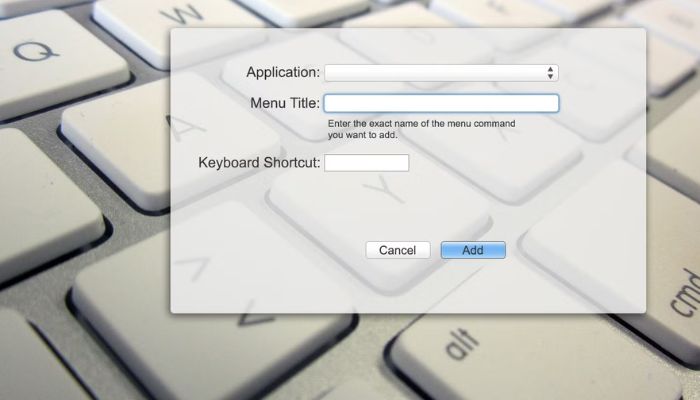
    1. Open System Preferences and go to “Keyboard” > “Shortcuts.”
    2. Select “App Shortcuts” from the left-hand sidebar.
    3. Click the “+” button to add a new shortcut.
    4. Choose the Application (or “All Applications” for a global shortcut).
    5. Enter the Exact Menu Title of the command you want to trigger, including the ellipsis (…) if it’s there.
    6. Assign the Keyboard Shortcut in the field. It’s best to use Cmd + Shift or Cmd + Ctrl plus another key to avoid conflicts.

    Using Automator for Advanced Workflows

    Custom Keyboard Shortcut

    For multi-step actions, Automator is your best friend.

    1. Open Automator and create a new “Quick Action.”
    2. In the workflow, set “Workflow receives current” to “no input.”
    3. Drag and drop actions from the library to build your sequence (e.g., “Get Specified Finder Items,” “Open Finder Items” with a specific app).
    4. Save the Quick Action with a descriptive name.
    5. Now, go to System Preferences > Keyboard > Shortcuts > Services.
    6. Find your new Quick Action in the list and assign a custom keyboard shortcut to it.

    This allows you to, for example, press a key combo to take a selected image, resize it, and open it in Photoshop—all automatically.

    Best Practices for Your Keyboard Shortcut Setup

    A disorganized shortcut scheme can be worse than no scheme at all. Follow these tips to stay efficient.

    • Be Consistent: Try to use similar key combinations for similar actions across different apps (e.g., always use Ctrl+Shift+S for “Save As”).
    • Avoid Conflicts: Before assigning a new shortcut, test it to ensure it doesn’t override a critical existing shortcut in your most-used applications.
    • Start Small: Don’t try to memorize 20 new shortcuts at once. Introduce them one or two at a time into your workflow until they become muscle memory.
    • Document Your Scheme: Keep a simple text file or note with your most important custom shortcuts. This is invaluable when you’re still learning or if you need to set up a new machine.

    Troubleshooting Common Shortcut Problems

    • Shortcut Doesn’t Work: The most common cause is a conflict with another application. Try a different key combination.
    • The “Shortcut Key” Field is Grayed Out: This usually means you are trying to set a shortcut for the original .exe file, not a shortcut file. Ensure you are in the properties of a .lnk shortcut file.
    • Mac Shortcut Inconsistent: Double-check that you typed the menu command exactly as it appears, including capitalization and punctuation.

    Conclusion: Take Control and Master Your Digital Workspace

    The ability to create a custom keyboard shortcut is a superpower that transforms your computer from a one-size-fits-all tool into a finely tuned instrument of your will. It represents the shift from passive user to active operator. The initial investment of time to set up these shortcuts pays exponential dividends in saved time, reduced frustration, and a smoother, more professional workflow.

    Custom Keyboard Shortcut

    Start today. Pick one repetitive task that annoys you, follow the steps in this guide to create a custom keyboard shortcut for it, and experience the immediate satisfaction of a more efficient digital life. Your future self, with their effortlessly organized and streamlined workflow, will thank you.