
How many times have you reached for your mouse, tracked across the screen, navigated a menu, and clicked a command, all for an action you perform dozens of times a day? These micro-interruptions add up, silently eroding your productivity and breaking your creative flow. What if you could execute those same commands with a simple, instantaneous key press? The power to do this has been hiding in plain sight within your operating system. Learning how to create a custom keyboard shortcut is one of the most impactful yet underutilized productivity upgrades available to any computer user.
This definitive guide will demystify the process, showing you that you don’t need to be a tech wizard to create a custom keyboard shortcut for virtually any application, script, or system action. We will move beyond the basic Ctrl+C and Ctrl+V and unlock a level of efficiency that makes your computer work for you, not the other way around. Get ready to streamline your workflow in ways you never thought possible.
Read more about How to Batch Rename Files in Windows Without Extra Software
Why Bother? The Unbeatable Benefits of a Custom Keyboard Shortcut
Before we dive into the “how,” let’s solidify the “why.” A well-planned custom keyboard shortcut does more than just save a second or two. It fundamentally changes your interaction with your machine.
- Dramatically Enhanced Productivity: Eliminating the need to navigate menus with a mouse can save hours per week, especially for repetitive tasks in design, coding, or data entry software.
- Reduced Physical Strain: Constantly switching between keyboard and mouse can contribute to repetitive strain injury (RSI). Keeping your hands on the home row as much as possible is a healthier computing habit.
- Uninterrupted Workflow: Maintaining your train of thought is crucial for deep work. A custom keyboard shortcut allows you to execute commands without breaking your concentration.
- Personalized Computing Experience: You can tailor your computer to fit your unique workflow, creating shortcuts for actions the original developers never considered.
Method 1: Creating a Global Custom Keyboard Shortcut in Windows
Windows provides a native, if slightly hidden, method to create a custom keyboard shortcut that can launch any application, file, or folder from anywhere in the operating system.
Step-by-Step Guide to Windows Shortcut Creation
This process involves creating a special shortcut file and assigning a key combination to it.
- Locate or Create a Shortcut: Find the application’s executable (.exe) file or the file/folder you want to open. Right-click it and select “Create shortcut.” This will create a shortcut file on your desktop. (You can move this file later).
- Access the Shortcut’s Properties: Right-click on the new shortcut file and select “Properties.”
- The Magic Field: Shortcut Key: In the Properties window, navigate to the “Shortcut” tab. You will see a field labeled “Shortcut key.” Click inside this field.
- Assign Your Key Combination: Now, press the key combination you want to use. Windows will automatically prepend
Ctrl + Altto your chosen key. For example, if you pressW, the field will displayCtrl + Alt + W. This is the standard format for these global shortcuts. You cannot use a single key likeWon its own, which prevents accidental activation. - Apply and Test: Click “Apply” and then “OK.” Now, minimize all your windows and press your new key combination (
Ctrl + Alt + Win our example). Your target application or file should launch immediately.
Pro Tip: Use this method to create a “quick-launch” panel for your most-used programs. Assign Ctrl + Alt + 1 for your browser, Ctrl + Alt + 2 for your text editor, and so on.
Method 2: Creating Application-Specific Custom Shortcuts
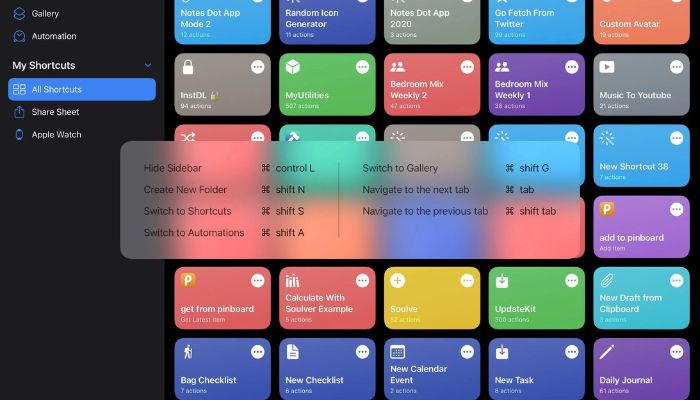
Many powerful applications allow you to create a custom keyboard shortcut directly within their settings. This is where you can truly optimize your workflow for specific tasks.
How to Set Up In-App Keyboard Shortcuts
The location of these settings varies, but the principle is universal.
- Open the Application’s Preferences or Settings: Look for a menu item like “Preferences,” “Settings,” or “Options.”
- Find the Keyboard Shortcuts Section: This is often labeled “Keyboard,” “Shortcuts,” “Key Bindings,” or found under an “Advanced” tab.
- Locate the Command and Assign a Key: You will typically see a searchable list of all available commands. Find the one you want (e.g., “Paste without Formatting,” “Create New Layer,” “Split Window”) and click in the field next to it. Then, simply press your desired key combination.
- In Adobe Photoshop: Go to Edit > Keyboard Shortcuts.
- In Microsoft Word: Go to File > Options > Customize Ribbon > Keyboard Shortcuts (Customize…).
- In Visual Studio Code: Go to File > Preferences > Keyboard Shortcuts.
This method is perfect for creating shortcuts for features you use frequently that don’t have a default one, or for overriding defaults with a scheme you find more intuitive.
Method 3: The Power User’s Guide to Custom Keyboard Shortcuts on macOS
Mac users have an incredibly powerful and versatile tool built right into the system called Automator, which can be used to create a custom keyboard shortcut for complex workflows.
Using System Preferences for Basic Shortcuts
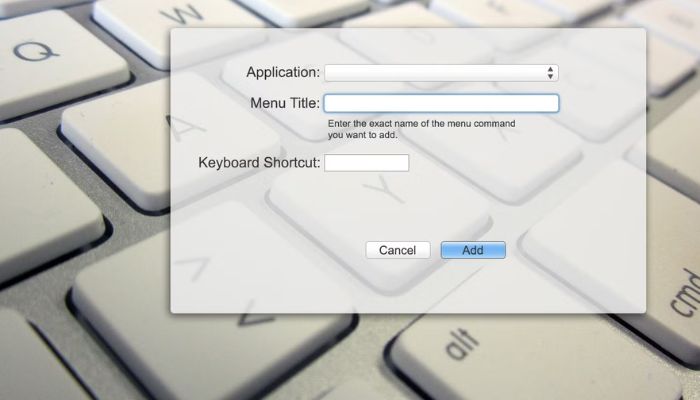
- Open System Preferences and go to “Keyboard” > “Shortcuts.”
- Select “App Shortcuts” from the left-hand sidebar.
- Click the “+” button to add a new shortcut.
- Choose the Application (or “All Applications” for a global shortcut).
- Enter the Exact Menu Title of the command you want to trigger, including the ellipsis (…) if it’s there.
- Assign the Keyboard Shortcut in the field. It’s best to use
Cmd + ShiftorCmd + Ctrlplus another key to avoid conflicts.
Using Automator for Advanced Workflows
For multi-step actions, Automator is your best friend.
- Open Automator and create a new “Quick Action.”
- In the workflow, set “Workflow receives current” to “no input.”
- Drag and drop actions from the library to build your sequence (e.g., “Get Specified Finder Items,” “Open Finder Items” with a specific app).
- Save the Quick Action with a descriptive name.
- Now, go to System Preferences > Keyboard > Shortcuts > Services.
- Find your new Quick Action in the list and assign a custom keyboard shortcut to it.
This allows you to, for example, press a key combo to take a selected image, resize it, and open it in Photoshop—all automatically.
Best Practices for Your Keyboard Shortcut Setup
A disorganized shortcut scheme can be worse than no scheme at all. Follow these tips to stay efficient.
- Be Consistent: Try to use similar key combinations for similar actions across different apps (e.g., always use
Ctrl+Shift+Sfor “Save As”). - Avoid Conflicts: Before assigning a new shortcut, test it to ensure it doesn’t override a critical existing shortcut in your most-used applications.
- Start Small: Don’t try to memorize 20 new shortcuts at once. Introduce them one or two at a time into your workflow until they become muscle memory.
- Document Your Scheme: Keep a simple text file or note with your most important custom shortcuts. This is invaluable when you’re still learning or if you need to set up a new machine.
Troubleshooting Common Shortcut Problems
- Shortcut Doesn’t Work: The most common cause is a conflict with another application. Try a different key combination.
- The “Shortcut Key” Field is Grayed Out: This usually means you are trying to set a shortcut for the original .exe file, not a shortcut file. Ensure you are in the properties of a
.lnkshortcut file. - Mac Shortcut Inconsistent: Double-check that you typed the menu command exactly as it appears, including capitalization and punctuation.
Conclusion: Take Control and Master Your Digital Workspace
The ability to create a custom keyboard shortcut is a superpower that transforms your computer from a one-size-fits-all tool into a finely tuned instrument of your will. It represents the shift from passive user to active operator. The initial investment of time to set up these shortcuts pays exponential dividends in saved time, reduced frustration, and a smoother, more professional workflow.

Start today. Pick one repetitive task that annoys you, follow the steps in this guide to create a custom keyboard shortcut for it, and experience the immediate satisfaction of a more efficient digital life. Your future self, with their effortlessly organized and streamlined workflow, will thank you.